
01
Sign in
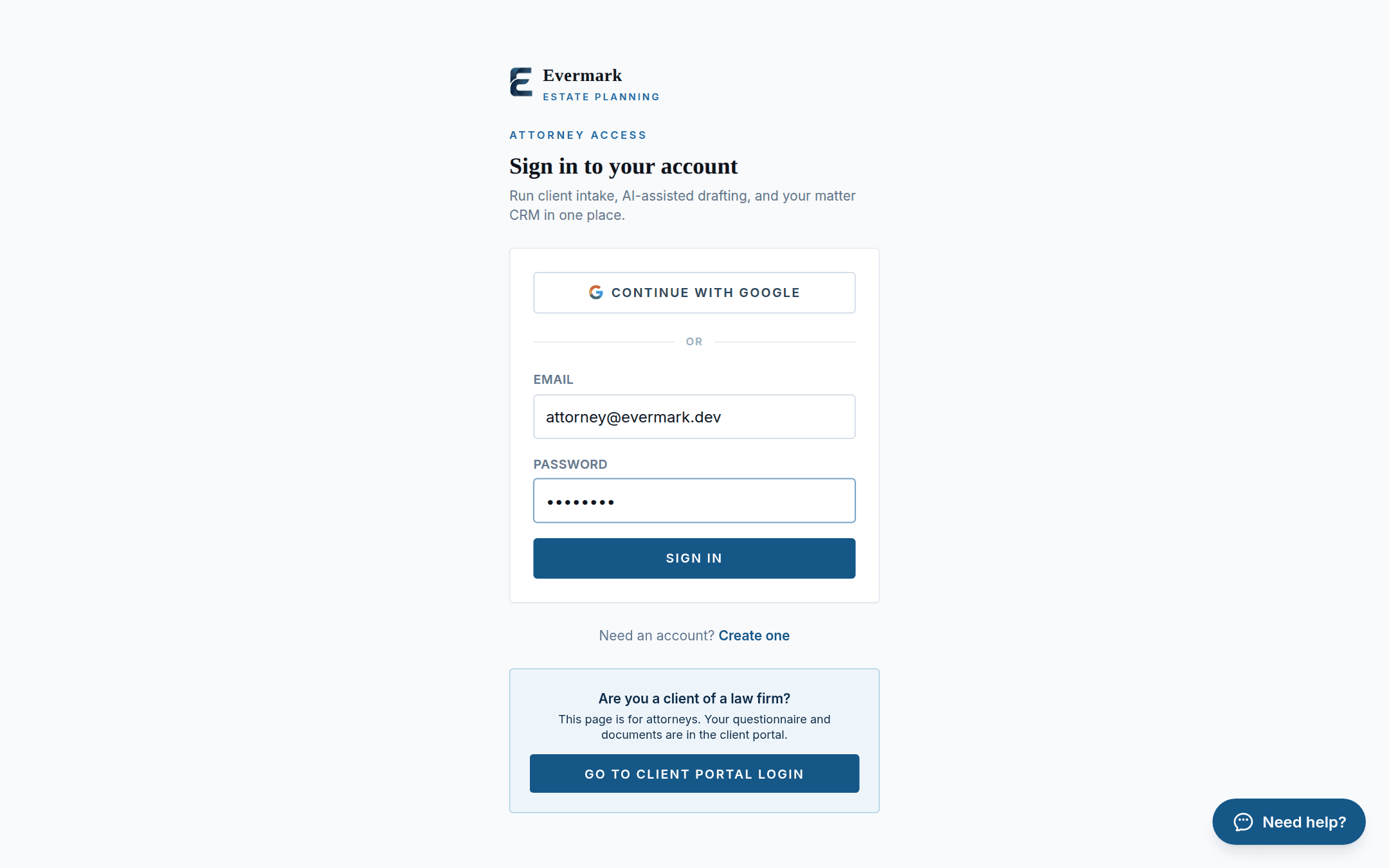
AttorneyThe attorney signs in to the firm's own branded workspace.
See it in action
This is the actual product, both sides of it. Follow one matter from the attorney opening it, through the client's questionnaire and review, to the executed estate plan landing in the client's portal.
Captured from a live walkthrough with sample data (“Jane Marie Sample”). Every screen is the real product, white-labeled to the firm.
Prefer to read at your own pace? The same walkthrough continues below, screen by screen.
Phase 1 of 6
Everything starts in the attorney dashboard: one form creates the matter, and the client's personal invite is ready on it immediately.
The attorney signs in to the firm's own branded workspace.
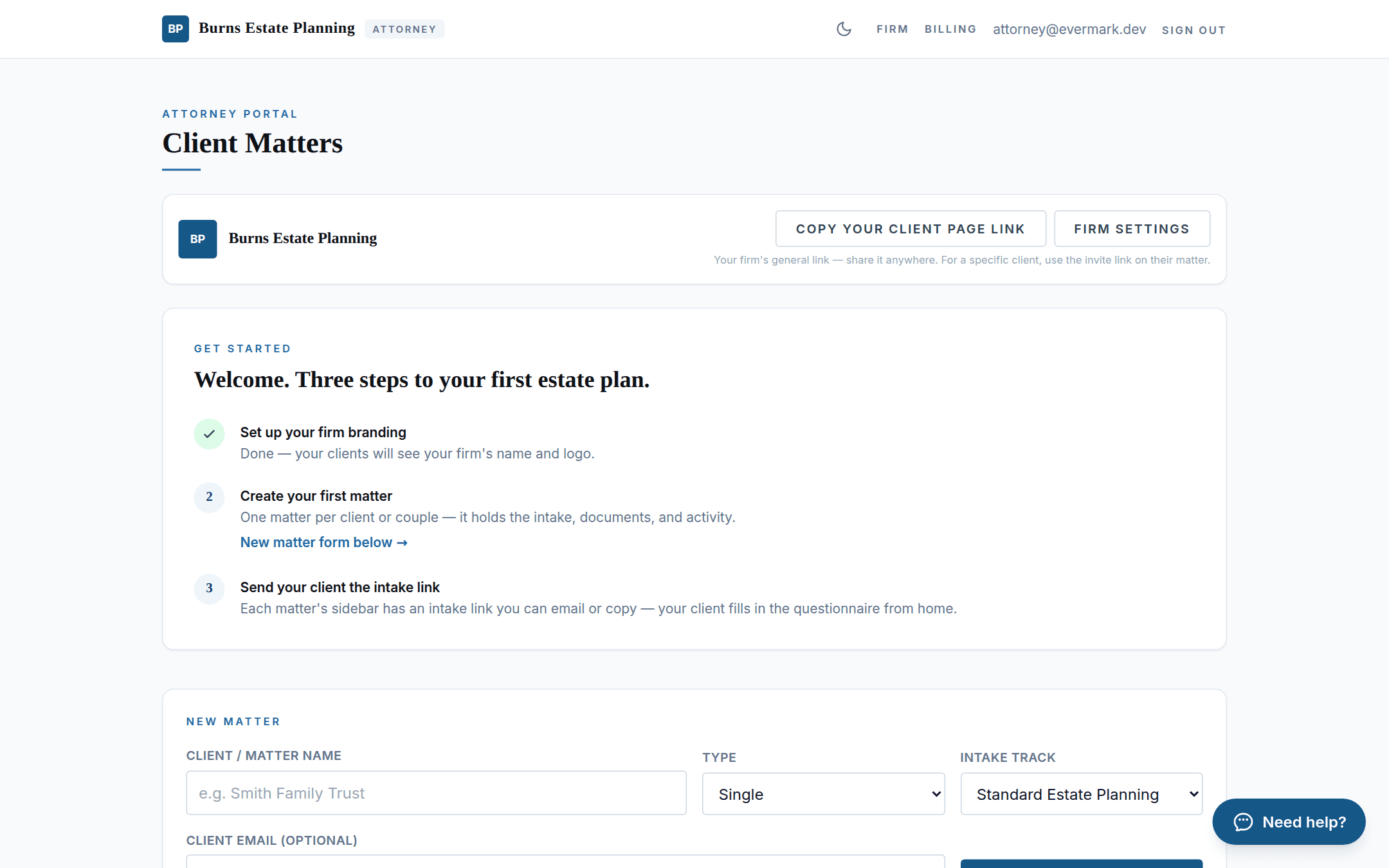
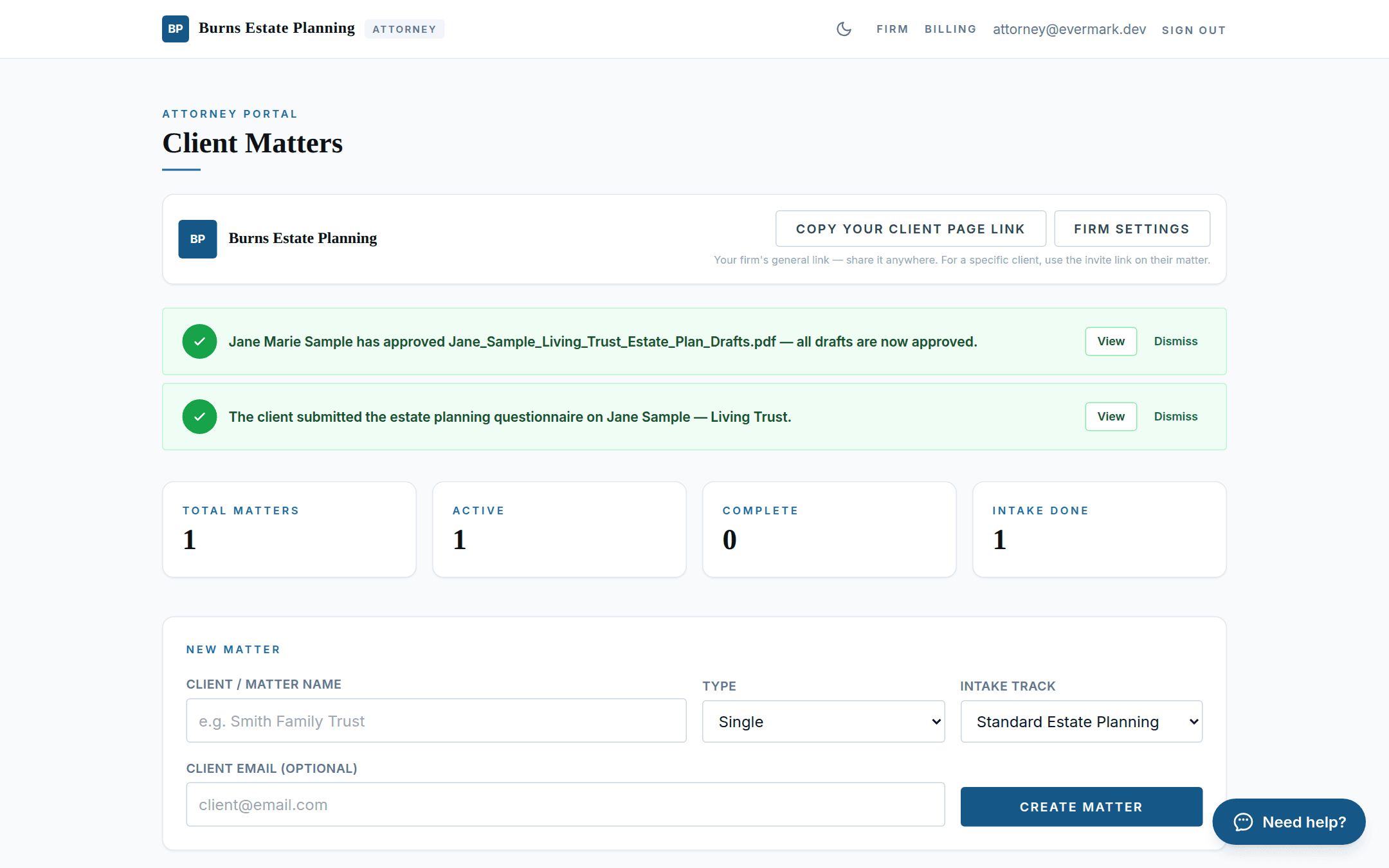
Home base: your firm's shareable client page link, a get-started guide, and the new-matter form. As matters progress, questionnaire submissions and draft approvals land here as banners, and in your inbox.
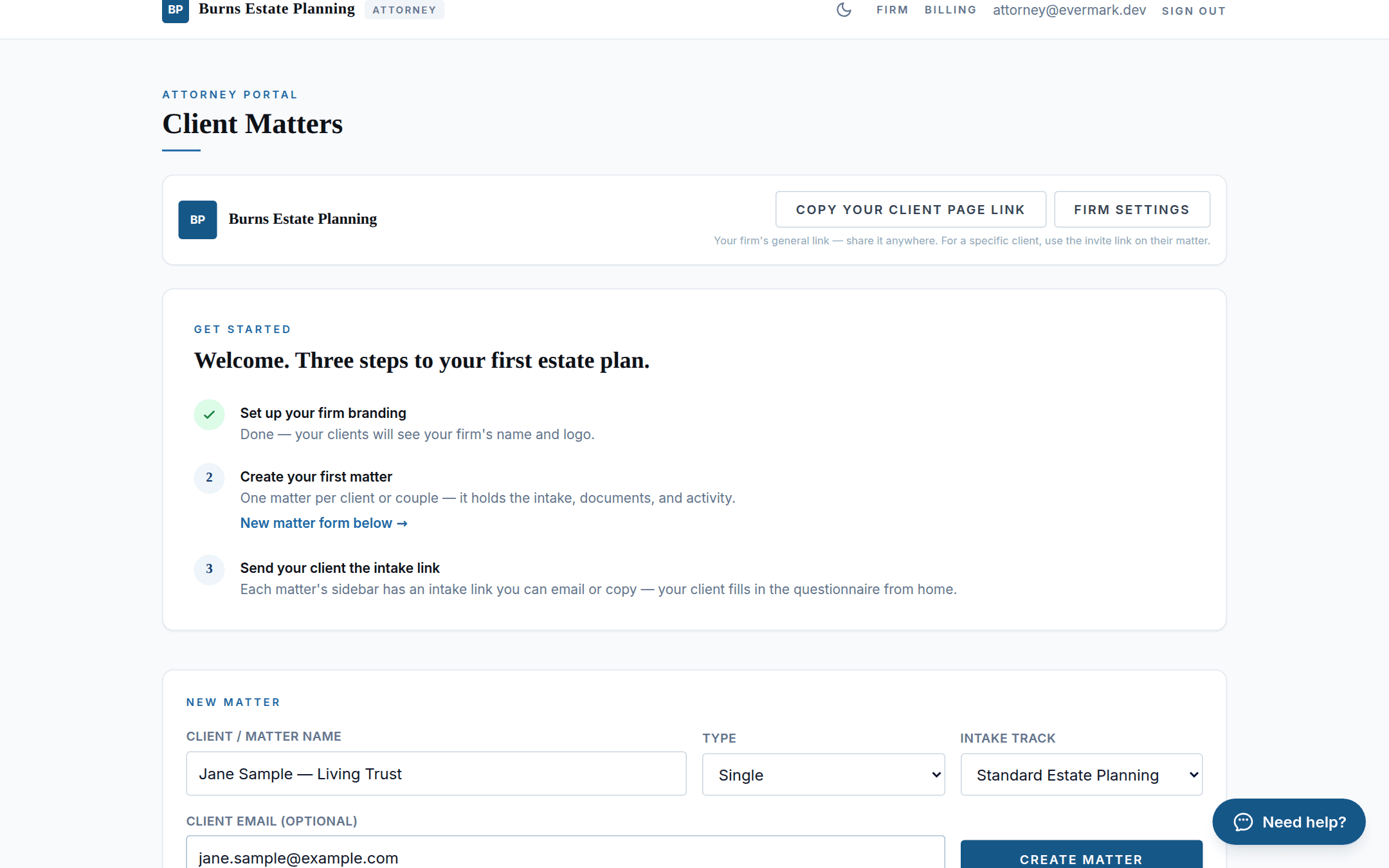
Name, single or couple, intake track, and the client's email. That's the whole form.
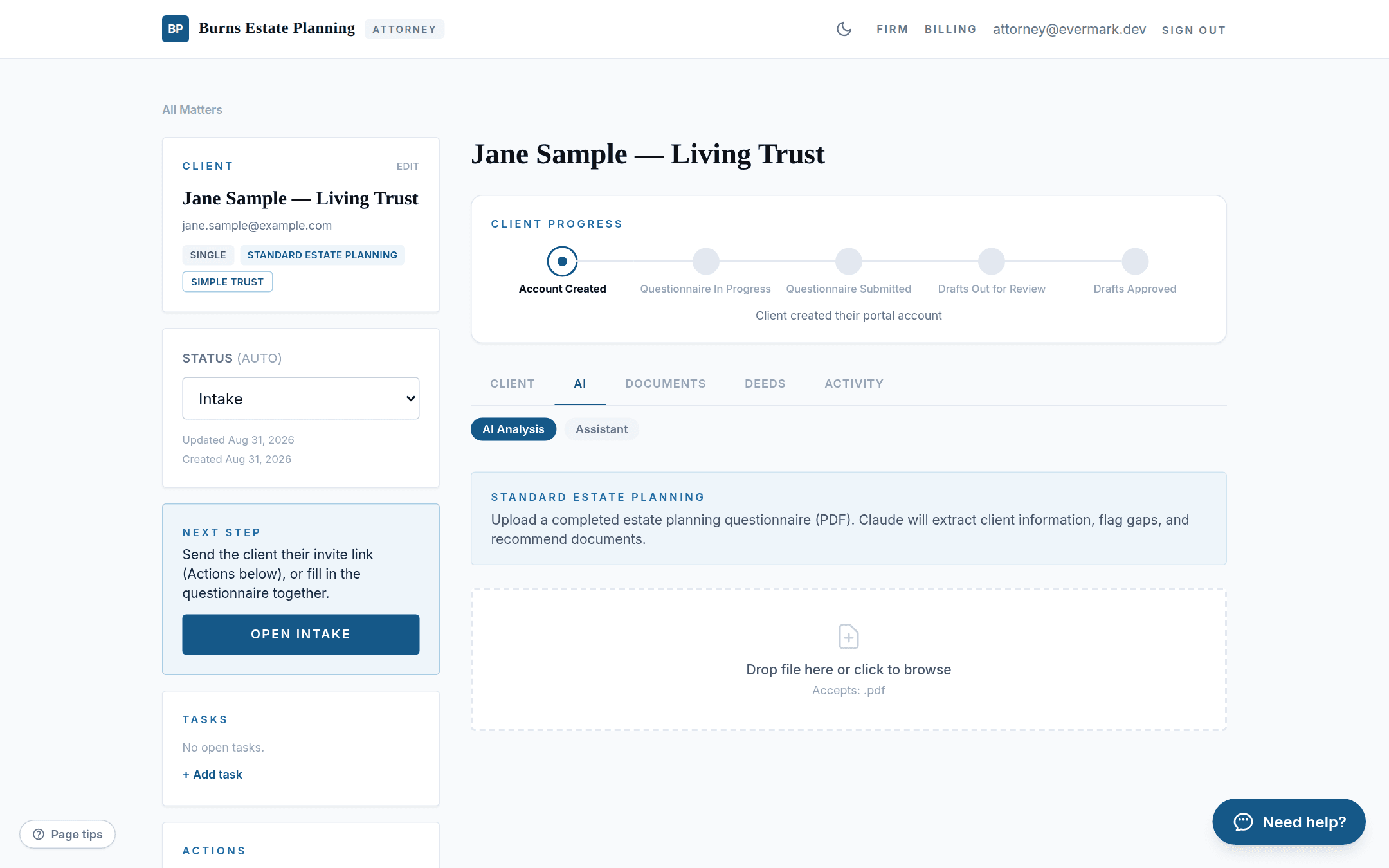
Every matter shows the Client Progress tracker, an auto-advancing status, and a Next Step card that always says what to do next. From Actions, email the client their personal invite link.
Phase 2 of 6
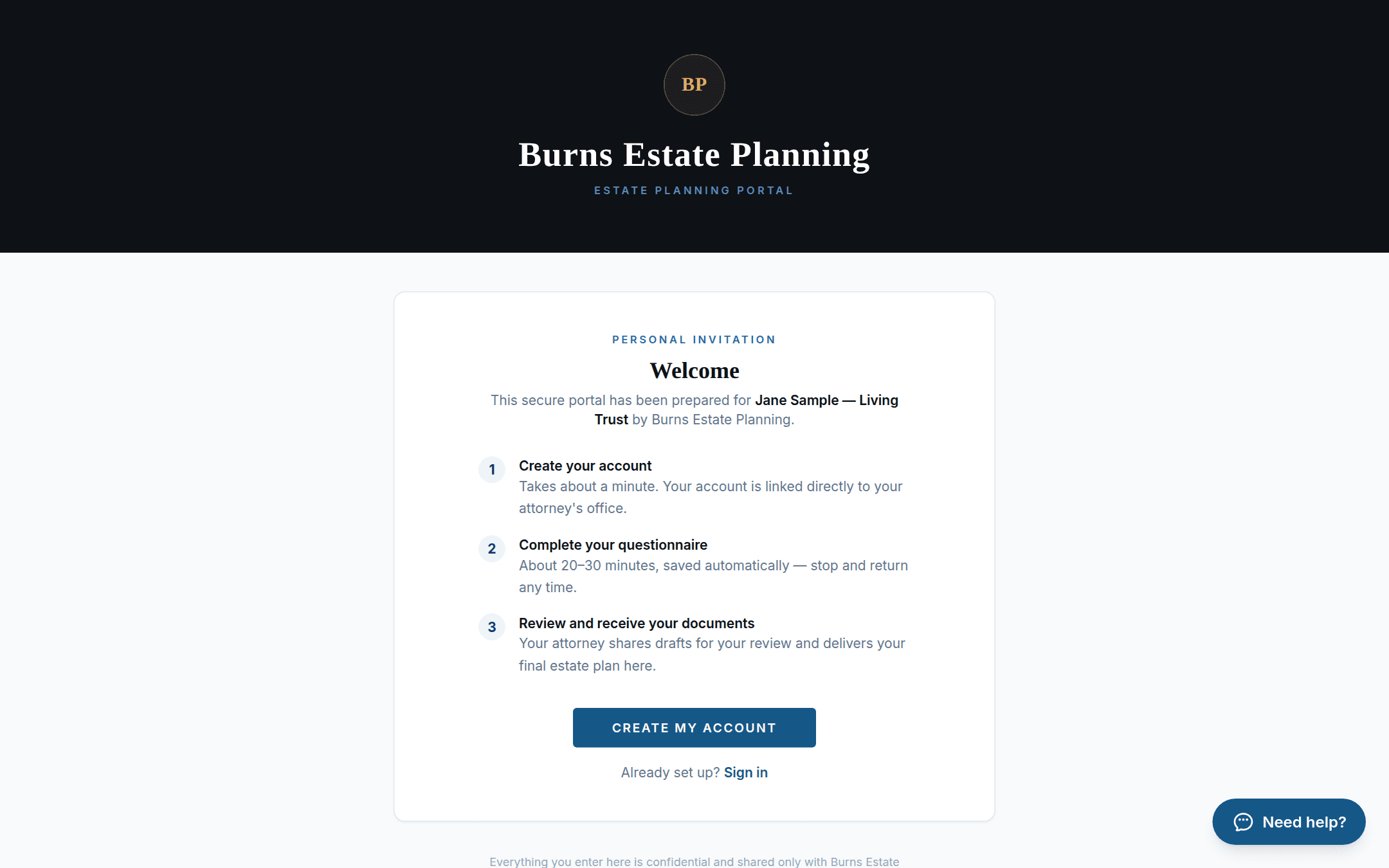
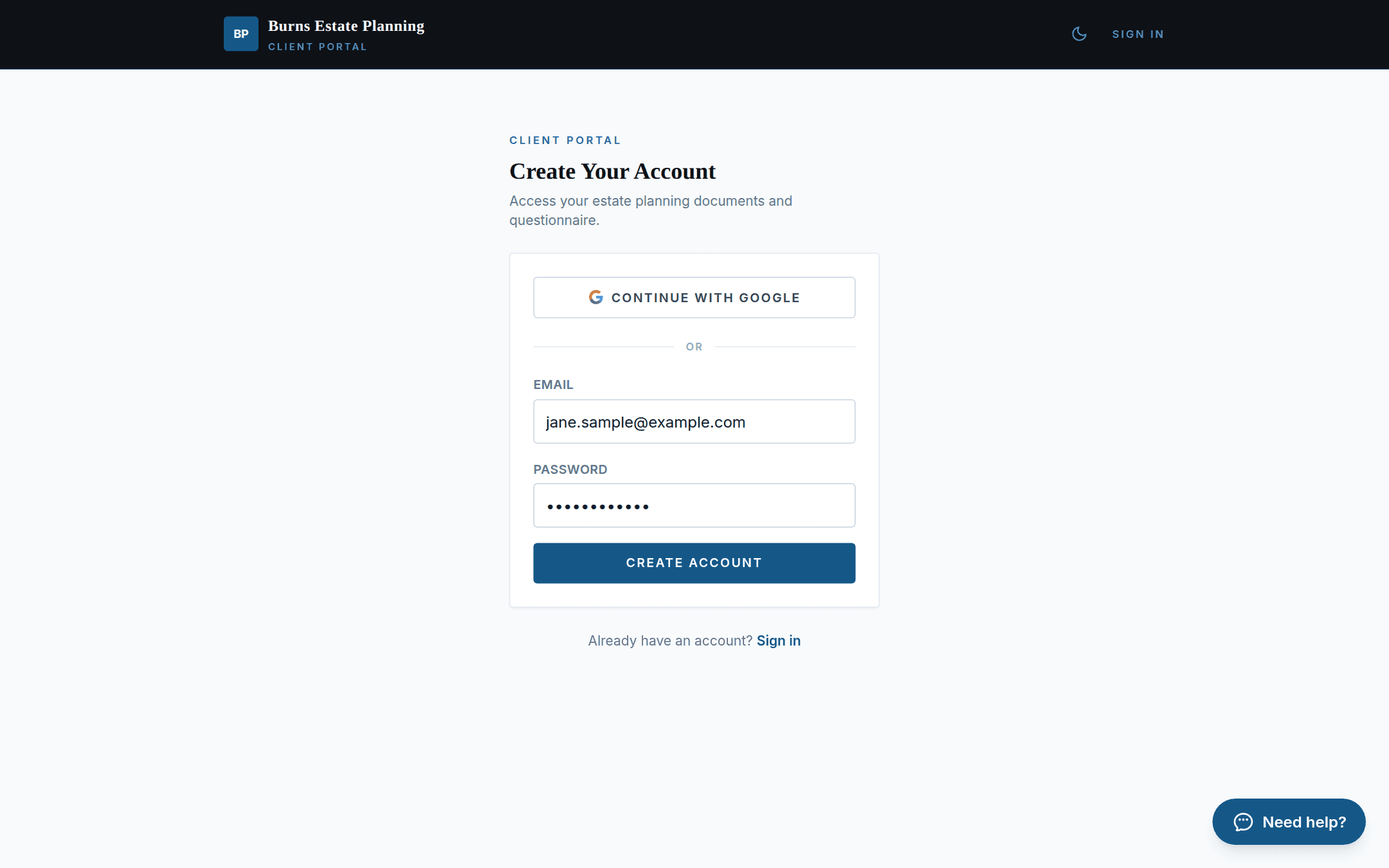
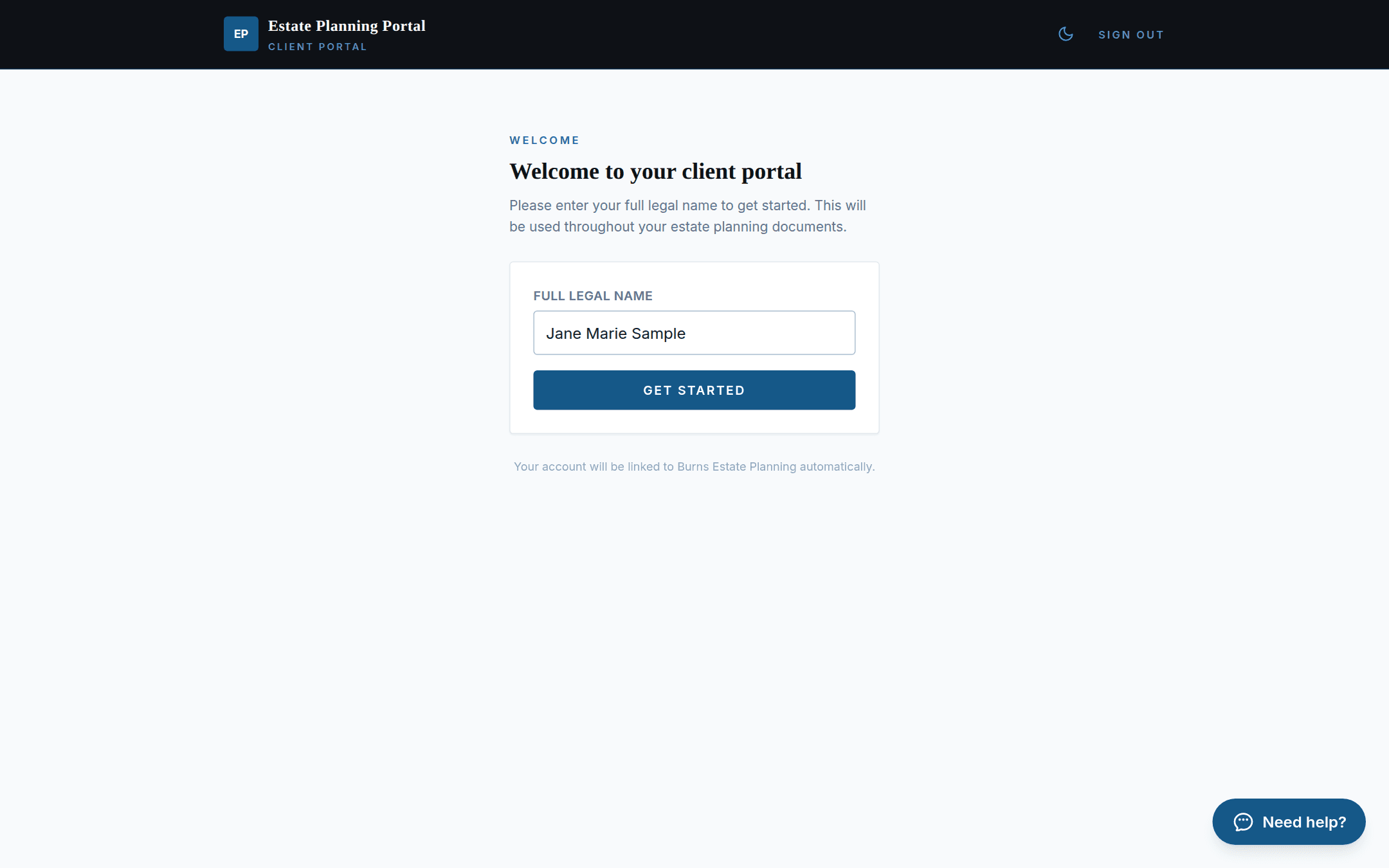
The invite link lands the client on a welcome page carrying your firm's branding. Account setup is two screens.
The client opens their personal invite: the matter is named, the firm is named, and one button starts account creation.
Email and password, or Google. The invite links the new account to the right matter automatically: no codes to type.
One question: the full legal name that will flow into the estate planning documents.
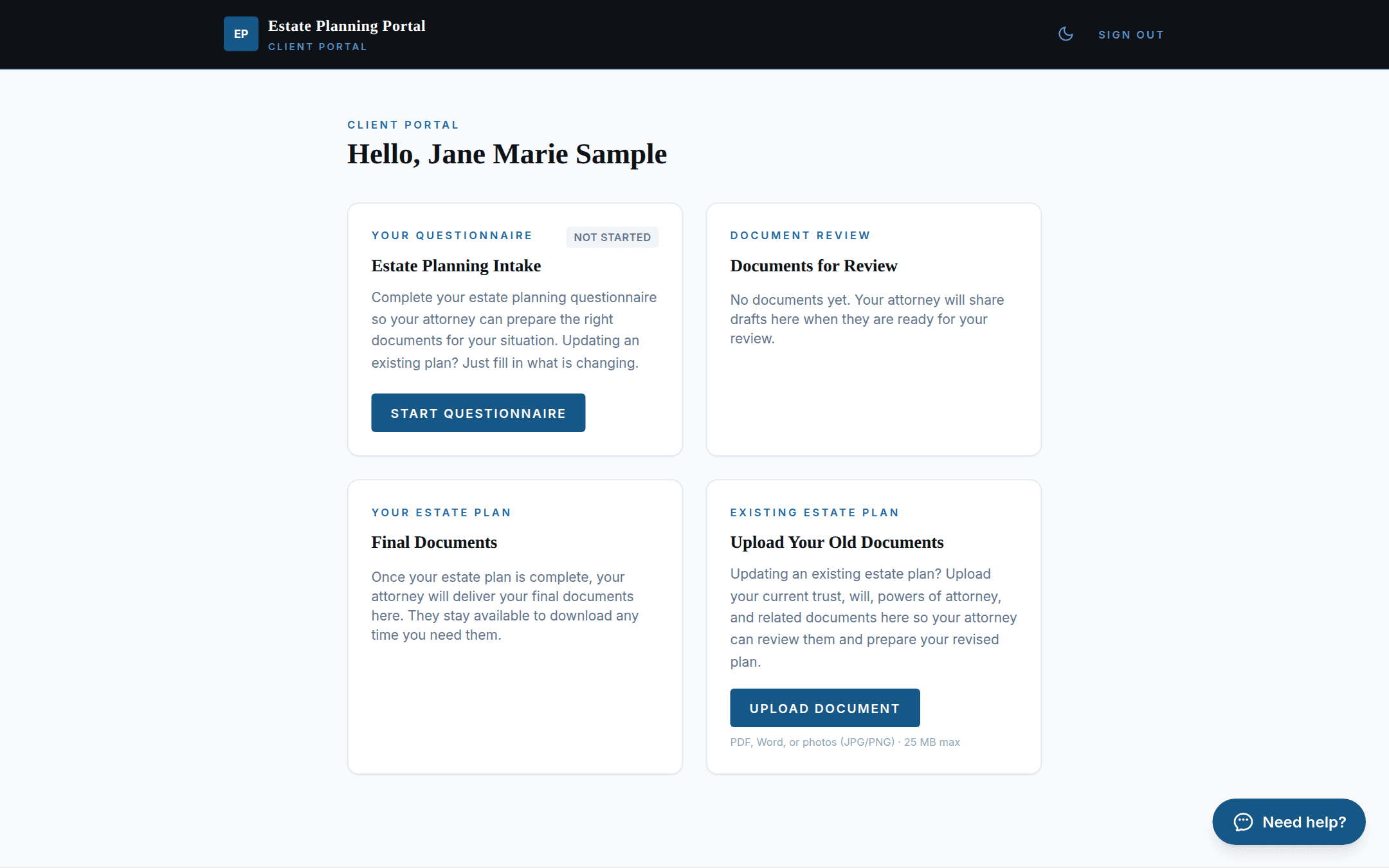
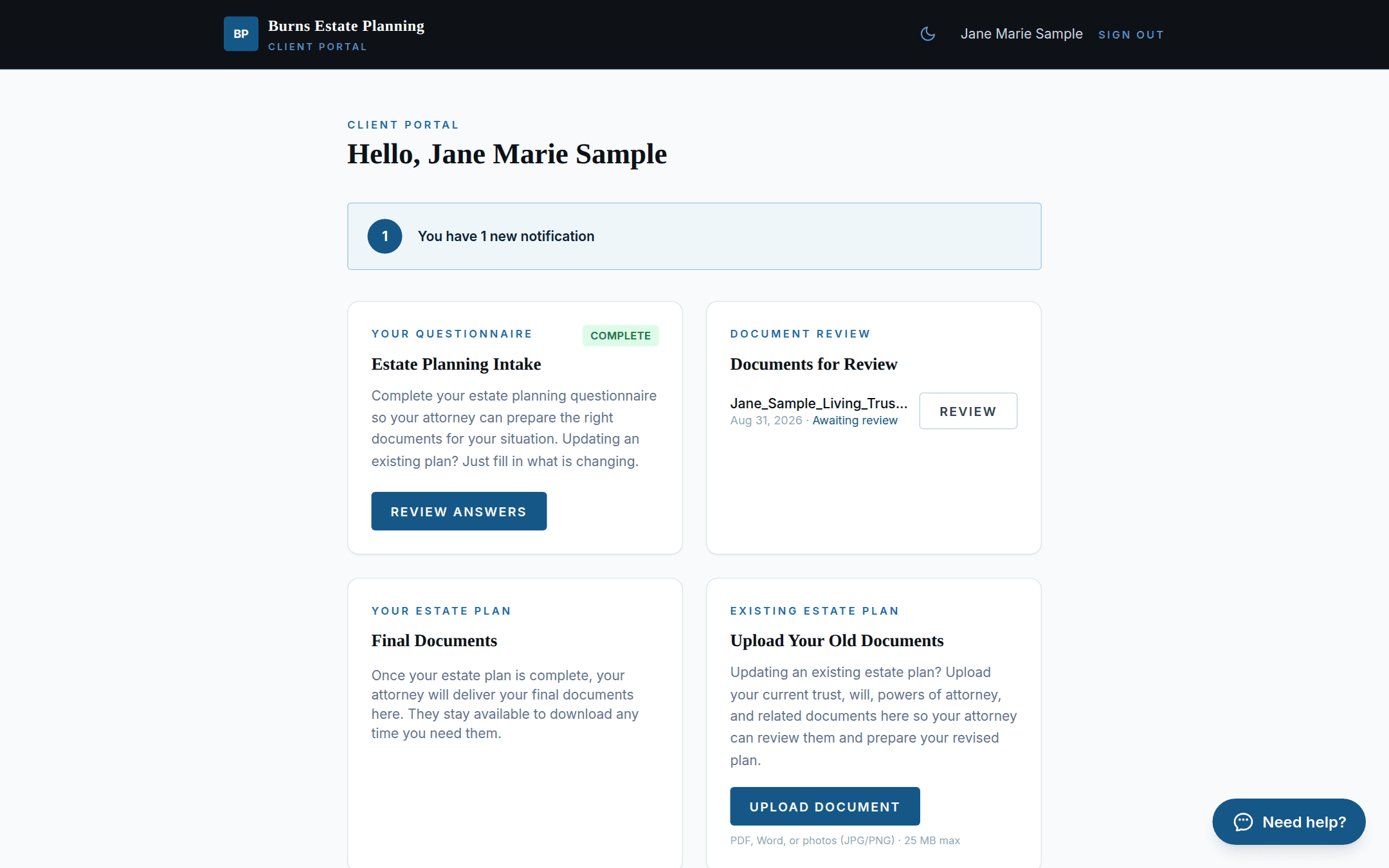
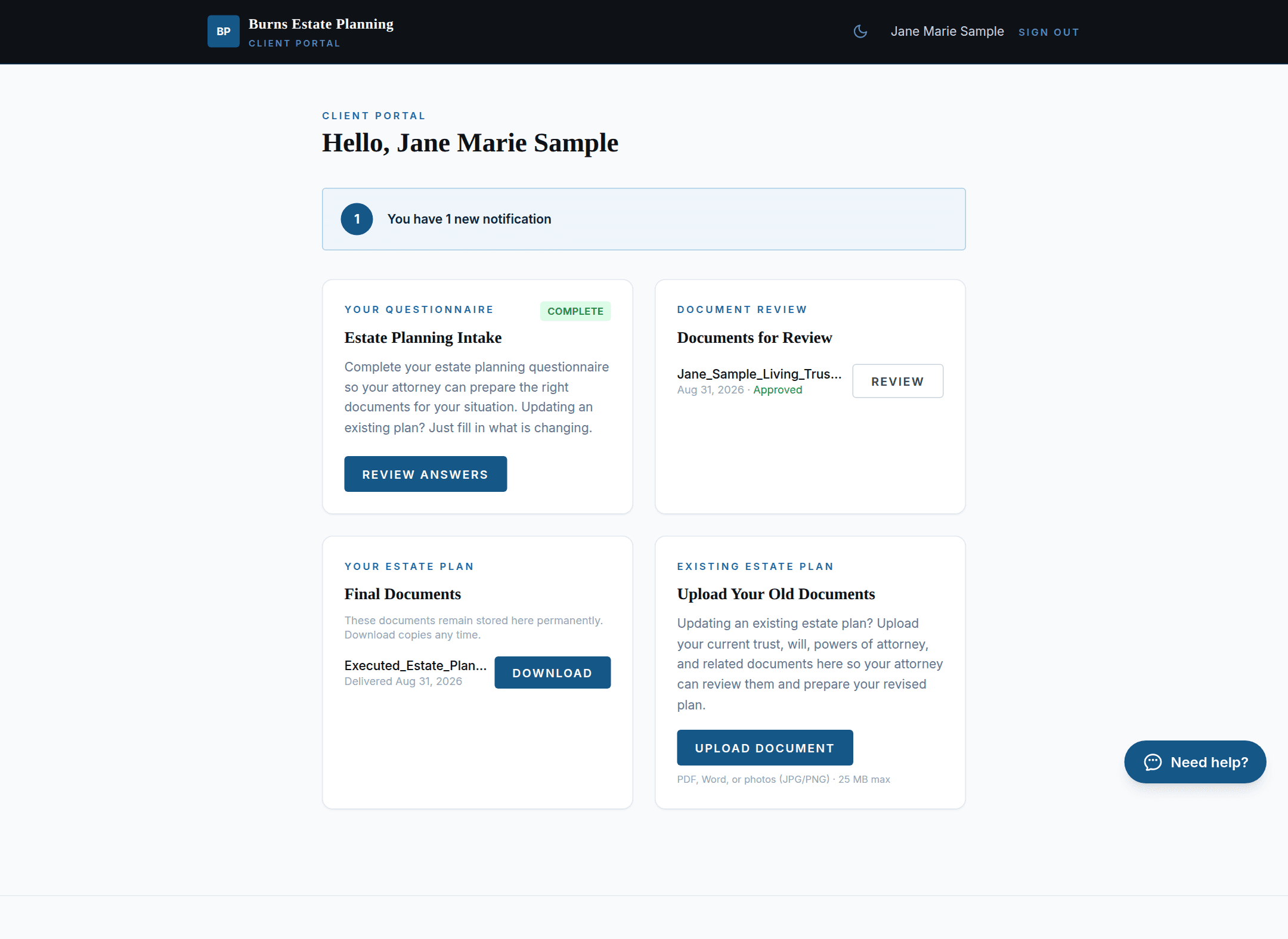
Four cards: the questionnaire, documents for review, final documents, and an upload spot for any existing estate plan.
Phase 3 of 6
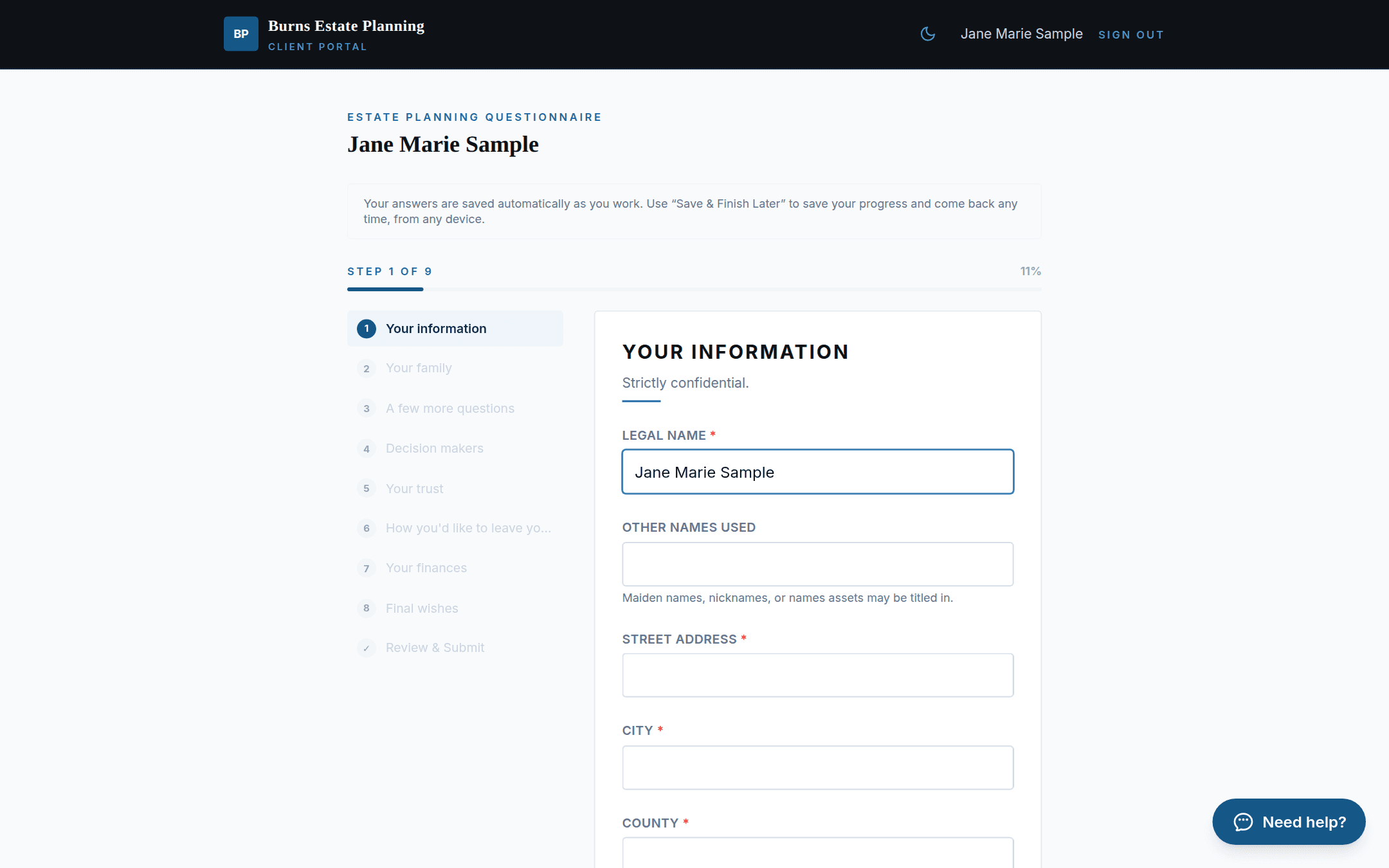
Plain-language questions, nine short steps, save-and-resume, and the attorney is notified the moment it's submitted.
Family, decision makers, trust wishes, assets, final wishes, all written in client language. Progress saves automatically, so the client can stop and return any time.
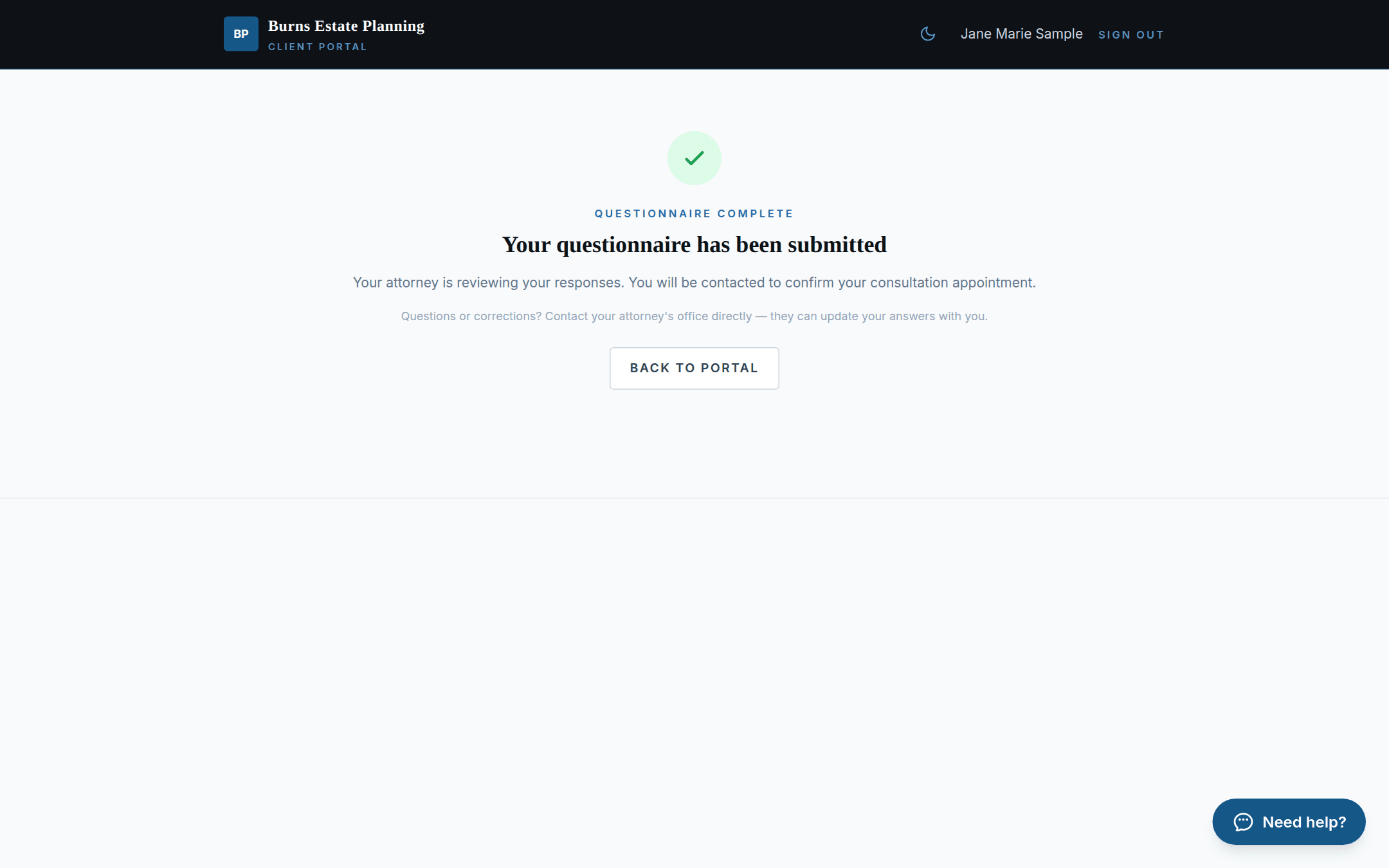
After submitting, the client sees a read-only summary of every answer, and can't accidentally restart over a finished intake.
Phase 4 of 6
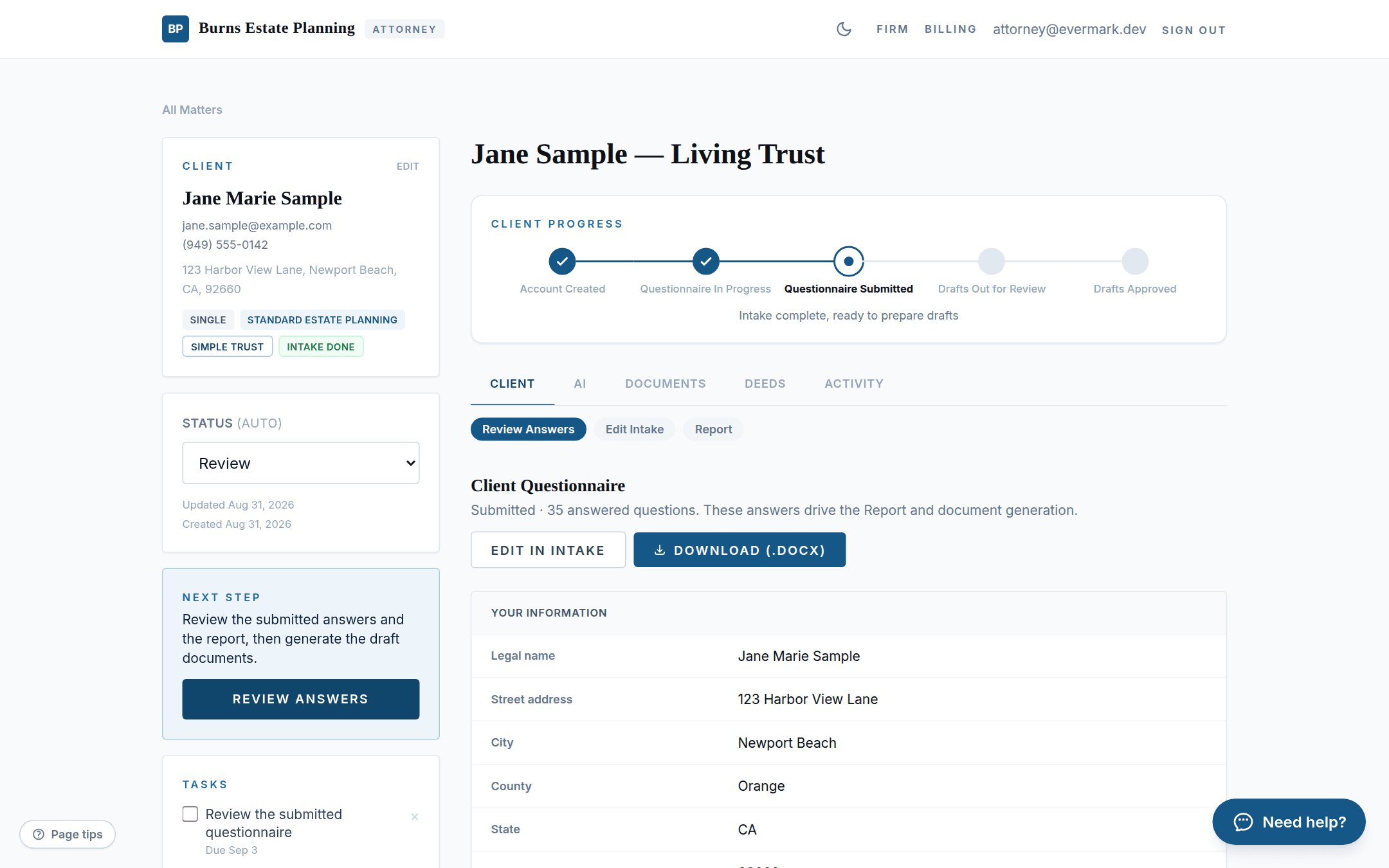
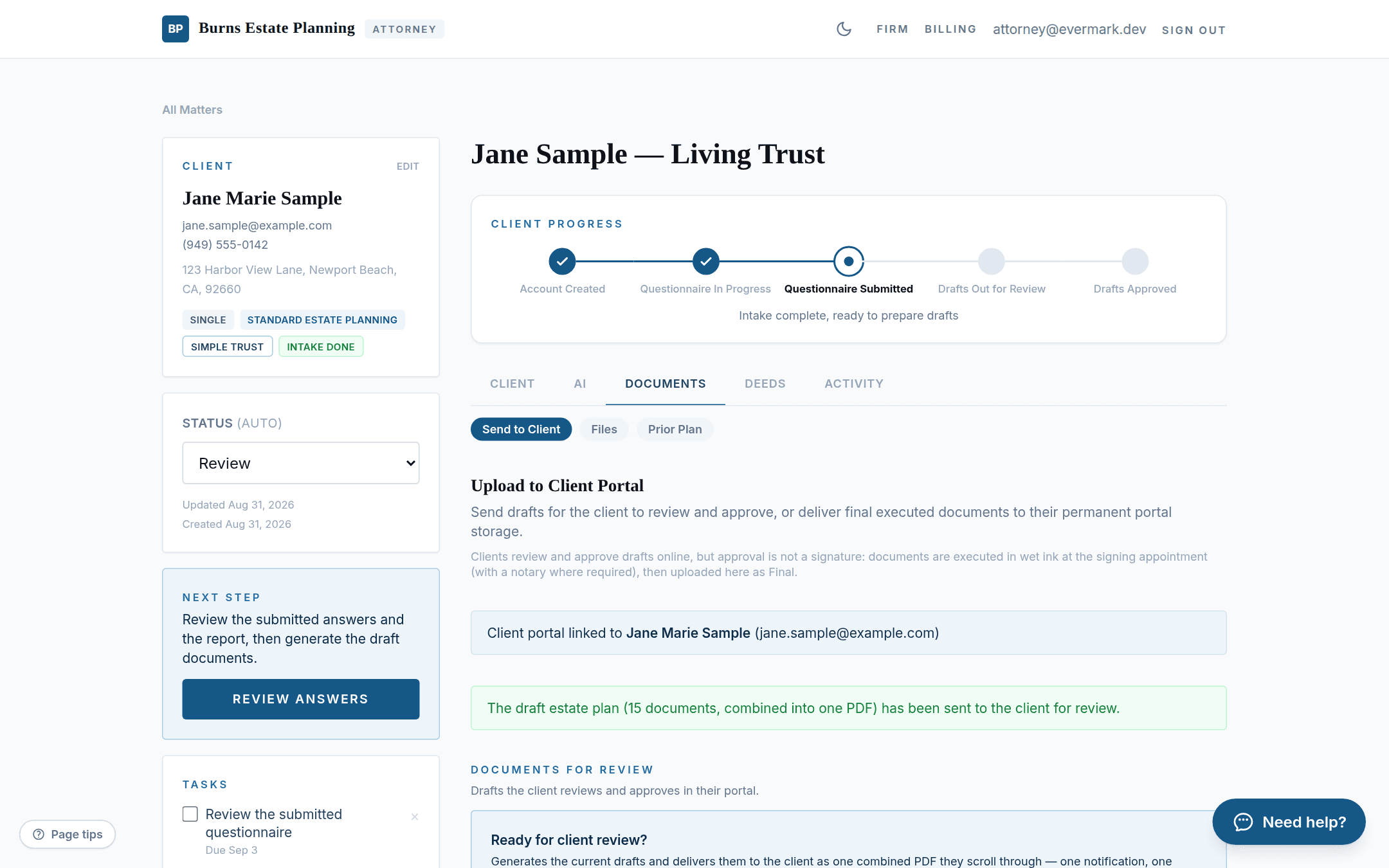
The attorney reviews the answers, then a single button turns them into a client-ready draft package.
The tracker advances to Questionnaire Submitted, status auto-moves to Review, and the answers are laid out for checking, with a Word export if wanted.
The Send to Client tab leads with the one-click send. The upload zone below stays available for documents you've edited in Word; either way, the client receives a PDF.
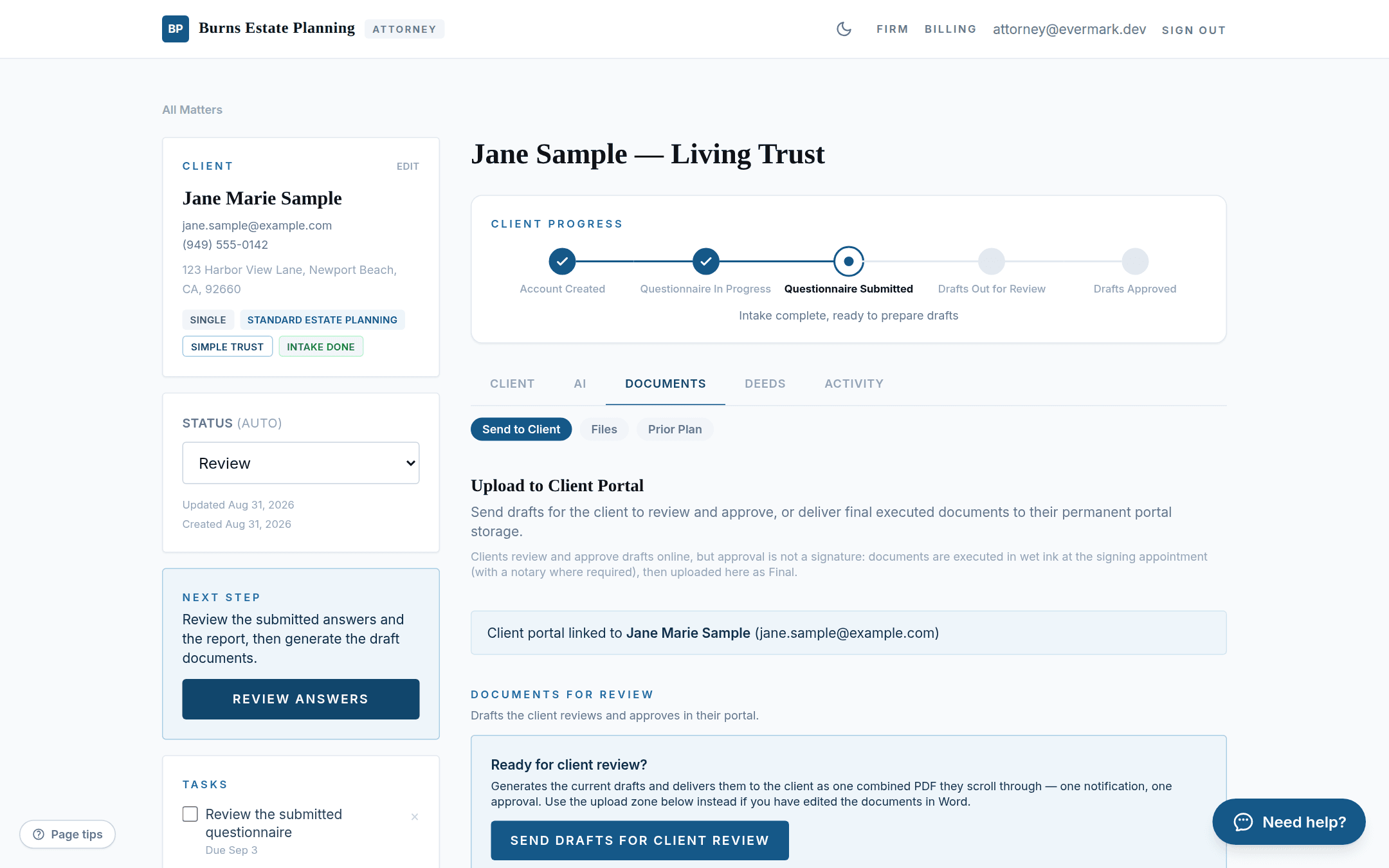
The platform generates the full document set (here, 15 documents), combines it into a single PDF with a cover page and per-document separators, delivers it to the portal, and emails the client. One notification, one approval.
Phase 5 of 6
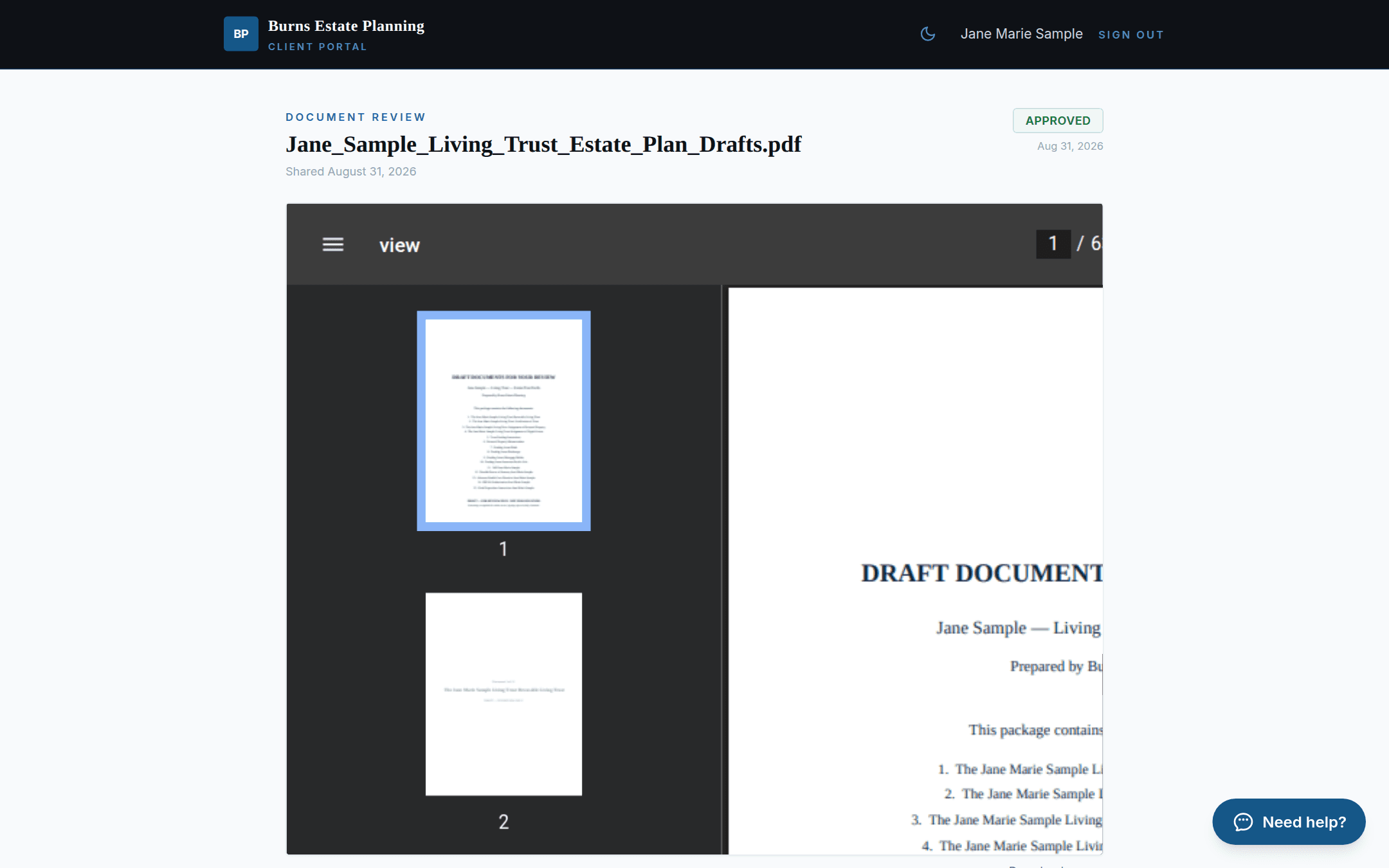
The client scrolls one document top to bottom, and has two honest buttons: approve, or ask for a change.
A notification and the document card appear in the portal, and an email links straight here.
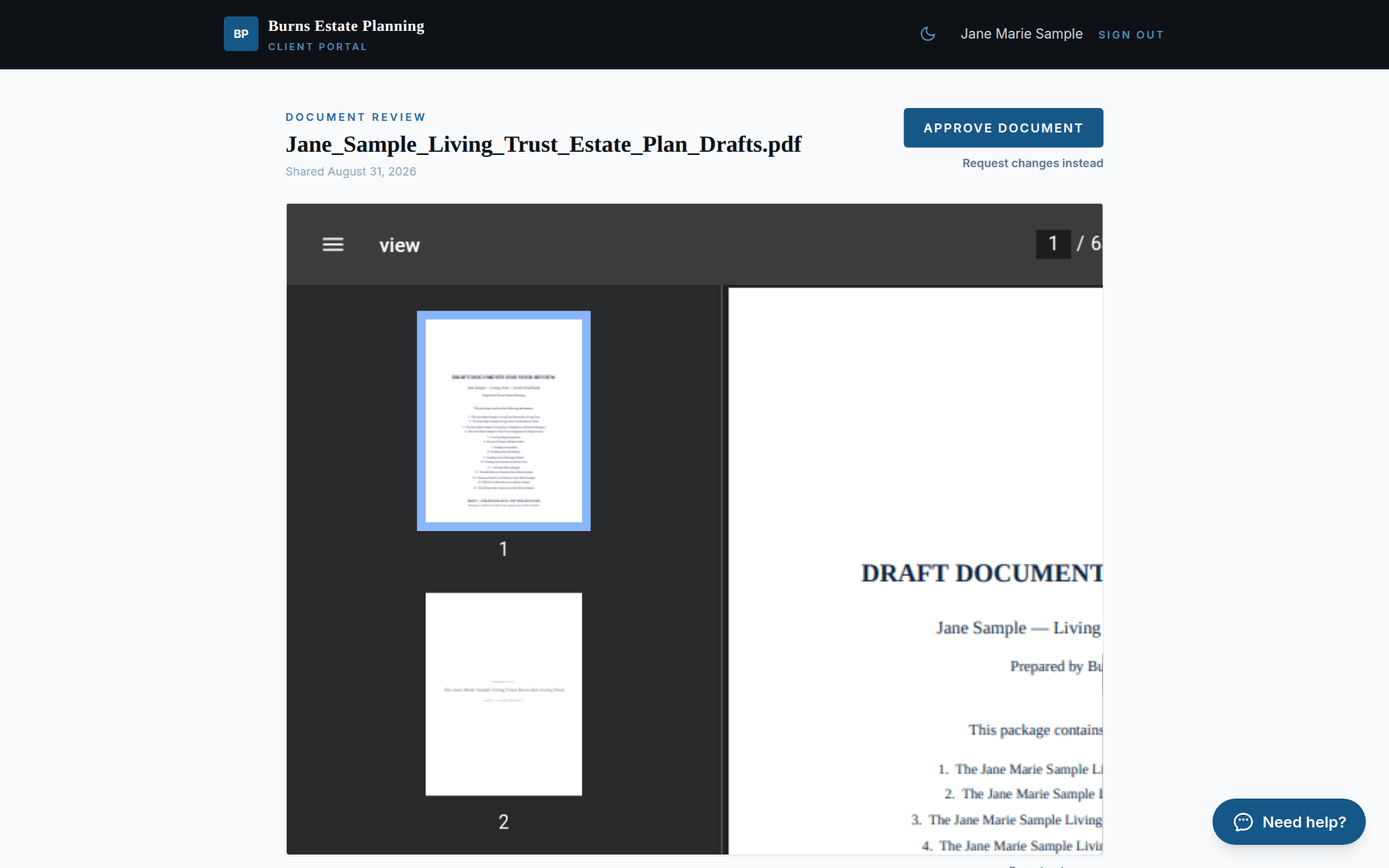
The whole draft plan reads in the browser: cover page, then each document introduced by a separator page. No downloads needed.
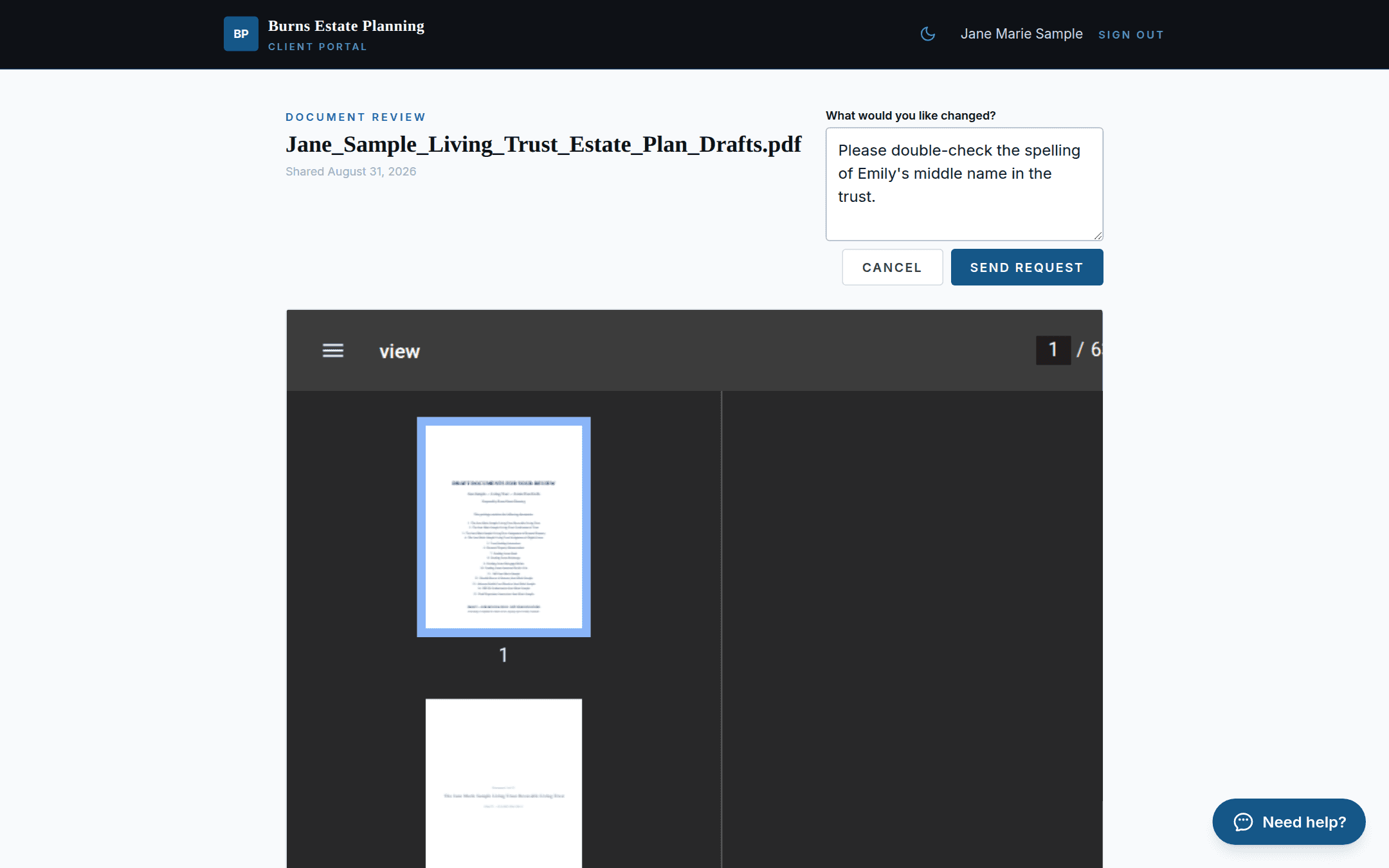
If something's off, the client says so in a note. The attorney is notified in-app and by email, and the request holds approval until a revised draft replaces it.
One click approves the package, and the platform is explicit that approval is not a signature.
Phase 6 of 6
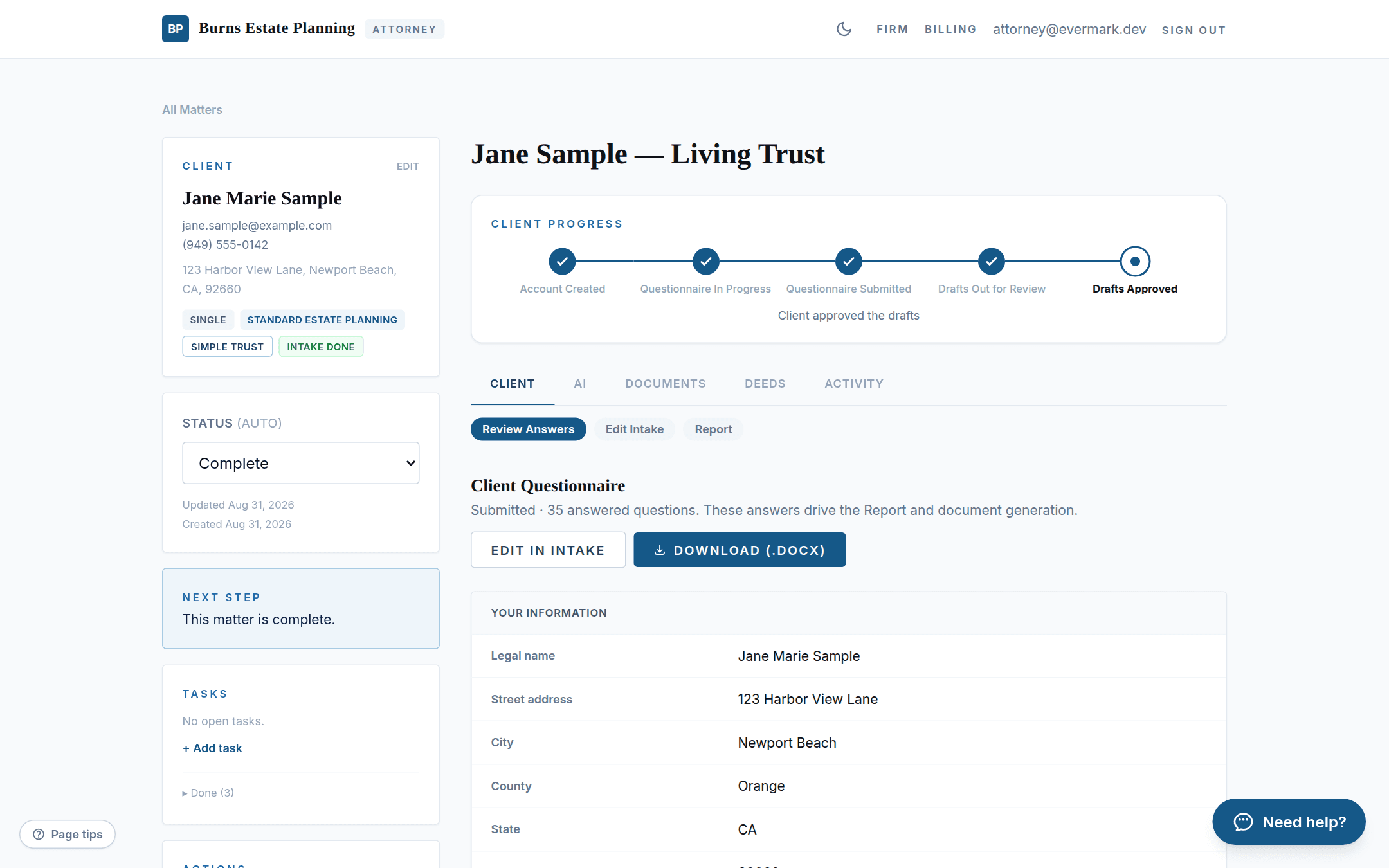
Approval moves the matter to Signing & Finals. Delivering the executed documents is what completes it.
The dashboard banner and an email announce that every draft is approved.
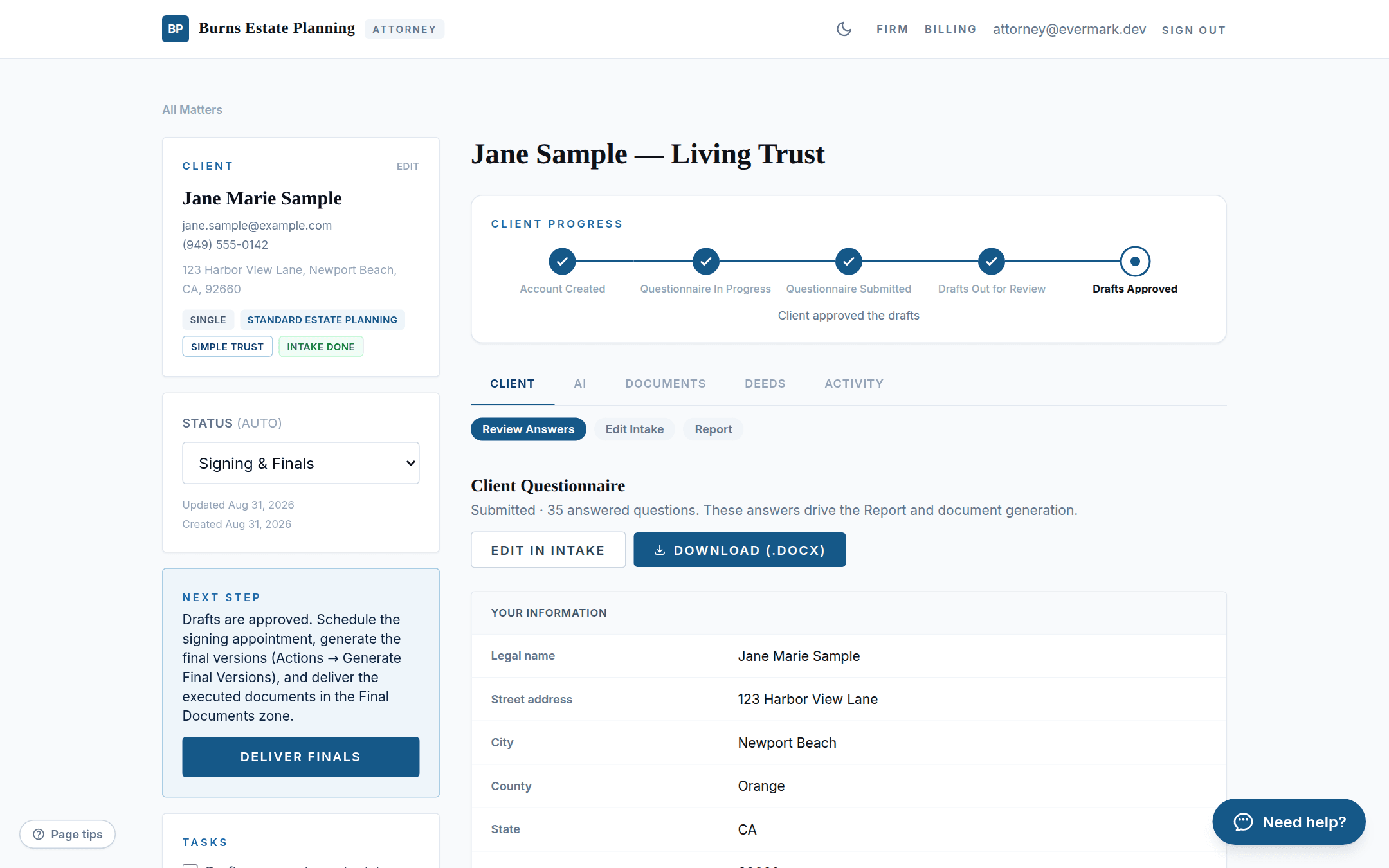
The tracker reads Drafts Approved, status moves to Signing & Finals, and the Next Step card says exactly what remains: schedule signing, generate finals, deliver them.
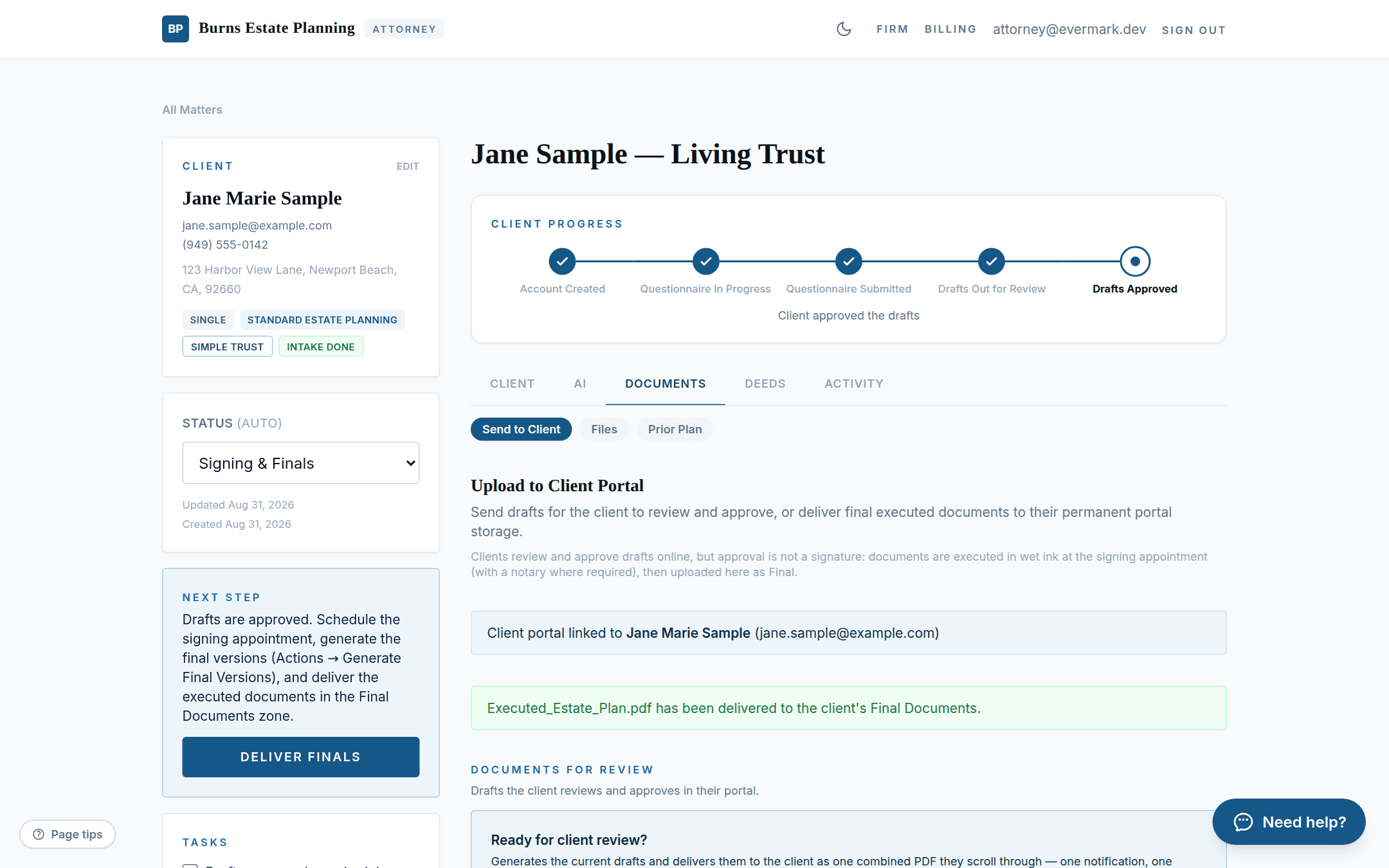
After the signing appointment, drop the executed documents into the Final Documents zone. Word or PDF, the client always receives PDF.
Delivering finals marks the matter complete, and a three-year plan-review reminder is already scheduled.
The executed estate plan lives in the client's portal for download any time, under your firm's name.
Run this workflow for your own clients.
Start a 30-day free trial and take your next matter from questionnaire to signed documents on Evermark, under your own firm's brand.
Start free trial